What to look for when buying a laptop for work or school,

What to Look For When Buying a Laptop for Work or School
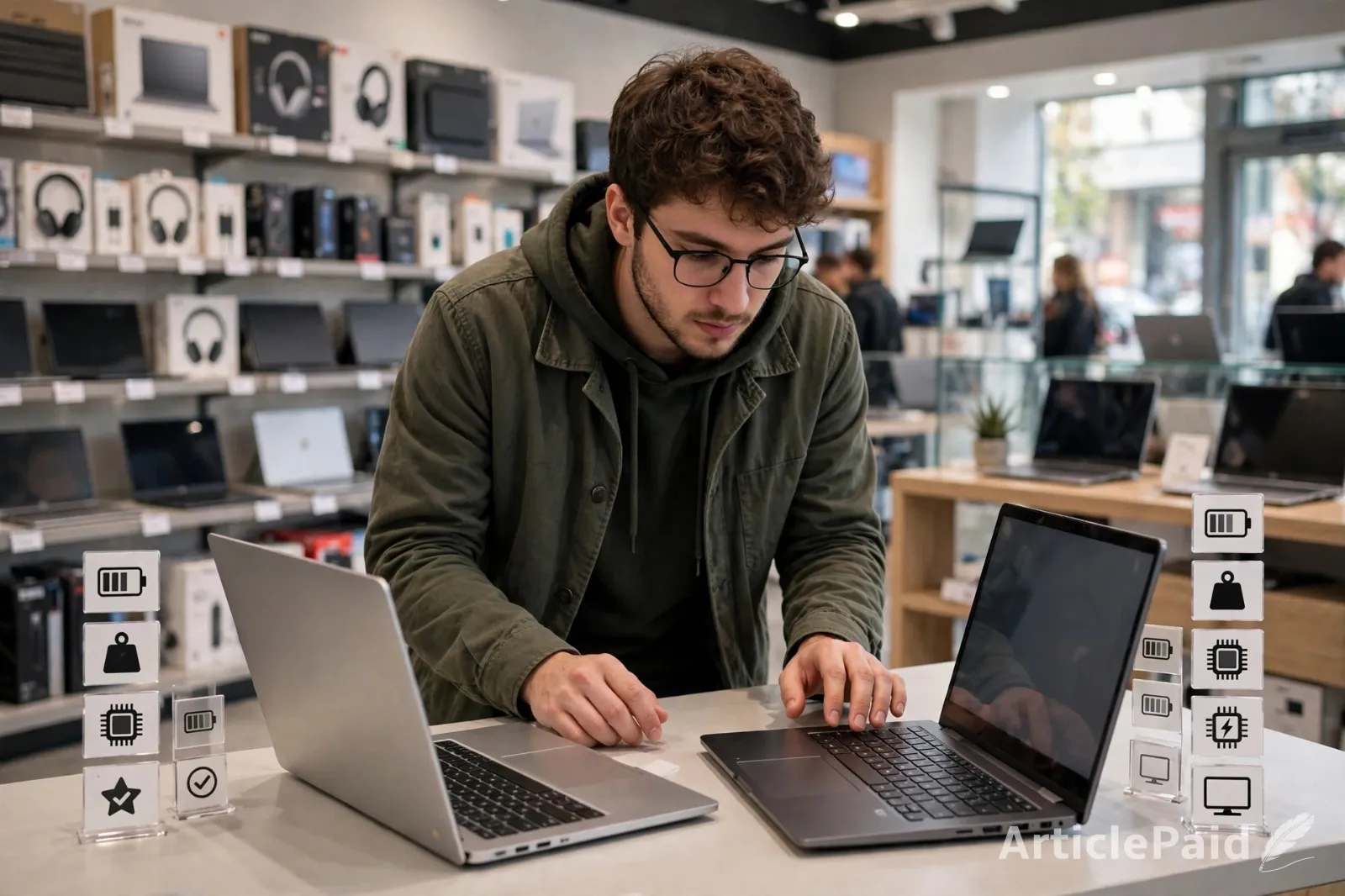
Buying a laptop can feel confusing. There are so many choices and big words. But it doesn’t have to be hard. You just need a laptop that handles your school or work stuff without slowing down or dying halfway through the day.
Here’s what really matters, kept simple.
"Think about what you actually do"
Will you mostly write papers, take notes, browse, use Google Docs or Word, and join video calls? Then a regular mid-range laptop is enough. If you edit videos, code a lot, or run heavy design programs, you’ll need something stronger. Be honest about your real needs. Don’t buy for the version of you that might exist later.
The processor
This is the brain of the laptop. Look for an Intel Core i5 or AMD Ryzen 5. Those handle school and office work just fine. An i7 or Ryzen 7 is better if you open lots of things at once. Skip the cheapest processors if you can. They feel slow pretty fast.
RAM
Think of RAM as short-term memory. 8 GB is the minimum. 16 GB is much better for most people. You’ll notice the difference when you have many tabs open plus a document and a Zoom call. More than 16 GB is only needed for heavy creative or technical work.
Storage
Get a laptop with an SSD. It makes everything open faster. 256 GB works if you keep most files in the cloud. 512 GB feels more comfortable so you’re not constantly deleting things.
The screen
A 14- or 15-inch screen is perfect for daily use. Full HD (the common clear resolution) is good enough for reading and working. A matte screen is nicer if you sit near windows because it cuts the glare.
Battery
You want a laptop that lasts most of the day. Aim for one that can do 8 to 10 hours of real use. Don’t just trust the big number on the box. Check a couple of recent reviews to see how it actually holds up.

Keyboard and trackpad
You’ll use these every day. A keyboard that feels good to type on makes a big difference when you’re writing long papers or notes. The trackpad should feel smooth and accurate so you don’t need a mouse all the time.
Ports
Look at what you plug in. USB-C is common now, but regular USB ports are still useful. An HDMI port helps when you need to connect to a bigger screen or projector. A headphone jack is still handy for many people.
Weight
If you carry it around campus or between meetings, try to stay under about 3.5 pounds. Light is good, but not if the keyboard feels cramped or the battery suffers.
How solid it feels
A laptop that creaks or flexes too much won’t last as long. Something with a sturdy build holds up better in a backpack.
Windows, Mac, or Chrome
Windows works with almost everything. Mac is great if you already use other Apple products. ChromeOS is simpler and often cheaper, but it can limit some programs.
Budget
You don’t need the most expensive laptop. A solid one in the mid-range price usually does the job well for school or regular work. Last year’s good model can also save you money without big downsides.
A few extra tips
Check if there’s a student discount. Look at the warranty. Make sure you can return it if it doesn’t feel right after a few days. A simple sleeve or case helps protect it.

Quick list to remember
- Processor: recent i5 or Ryzen 5
- RAM: 16 GB is ideal
- Storage: SSD, 512 GB if possible
- Screen: clear Full HD
- Battery that lasts the day
- Keyboard you like typing on
- Light enough to carry
The best laptop is the one that just works in the background. It starts fast, stays charged long enough, doesn’t slow down when you’re busy, and feels comfortable to use. Everything else is secondary.
List what you really need, check a couple of recent reviews, and pick the one that fits your daily life. You’ll end up with a machine that makes school or work a little easier instead of harder.











Responses (0)