How to clean up your photos, files, and unused subscriptions,


How to Clean Up Your Photos, Files, and Unused Subscriptions
Your phone is full. Your laptop is full. Your cloud storage says you’re out of space. And somewhere in there are hundreds of screenshots, duplicate photos, old downloads, and subscriptions you forgot you even signed up for.
It happens to everyone. One photo here, one file there, one “free trial” that quietly starts charging you every month.
You don’t have to clean everything in one day. Just start small. A little cleanup can make your phone, computer, and bank account feel a lot lighter.
Start with your photos
Photos usually take up the most space. You take 20 pictures to get one good one, then never delete the rest.
Start with the newest photos first. Scroll through the last month and delete the obvious ones: blurry pictures, repeats, screenshots you don’t need, and photos of things you already used, like receipts or notes.
Don’t try to organize every photo from the past ten years. That’s how people get overwhelmed and quit. Just clear the recent stuff first.

Most phones have a feature that finds duplicate or similar photos. Use it. It saves a lot of time.
Then make a few simple albums, like:
- Family
- Travel
- Screenshots
- Important documents
- Favorites
You don’t need perfect folders. You just need to find the photos you actually care about.
Clean your downloads
Your Downloads folder is probably full of things you needed once and never looked at again. Old PDFs, random pictures, installers, duplicates, and files with names like “download (27).”
Open it and sort by date. Delete the old stuff you clearly don’t need.
If you’re not sure about something, don’t delete it yet. Make a folder called “Maybe” and move it there. You can go back to it later.
Then clean your desktop. If it’s covered in files, put them into simple folders like:
- Work
- Personal
- Bills
- School
- Photos
Keep only a few things on your desktop. It makes your computer feel much less stressful.
Pick one place for important files
A lot of digital mess comes from having files everywhere: your phone, laptop, Google Drive, Dropbox, email, and maybe an old USB stick.
Pick one main place for your important files. It can be Google Drive, iCloud, OneDrive, or your computer. It doesn’t matter which one. Just choose one and keep using it.
Move your important things there: ID copies, insurance papers, tax files, school records, work documents, and anything you’d be upset to lose.
Before deleting anything important, back it up. Keep one copy in the cloud and one on an external drive if you can.
Delete the easy stuff first
You don’t need to make big decisions right away. Start with the things that are clearly junk:
- Old downloads
- Duplicate photos
- Screenshots you don’t need
- Apps you never open
- Old installers
- Empty folders
- Files named “final_final_v3”
Deleting the easy stuff gives you quick progress. Once you see space free up, it’s easier to keep going.
Check your subscriptions
This is the part that can save you real money.
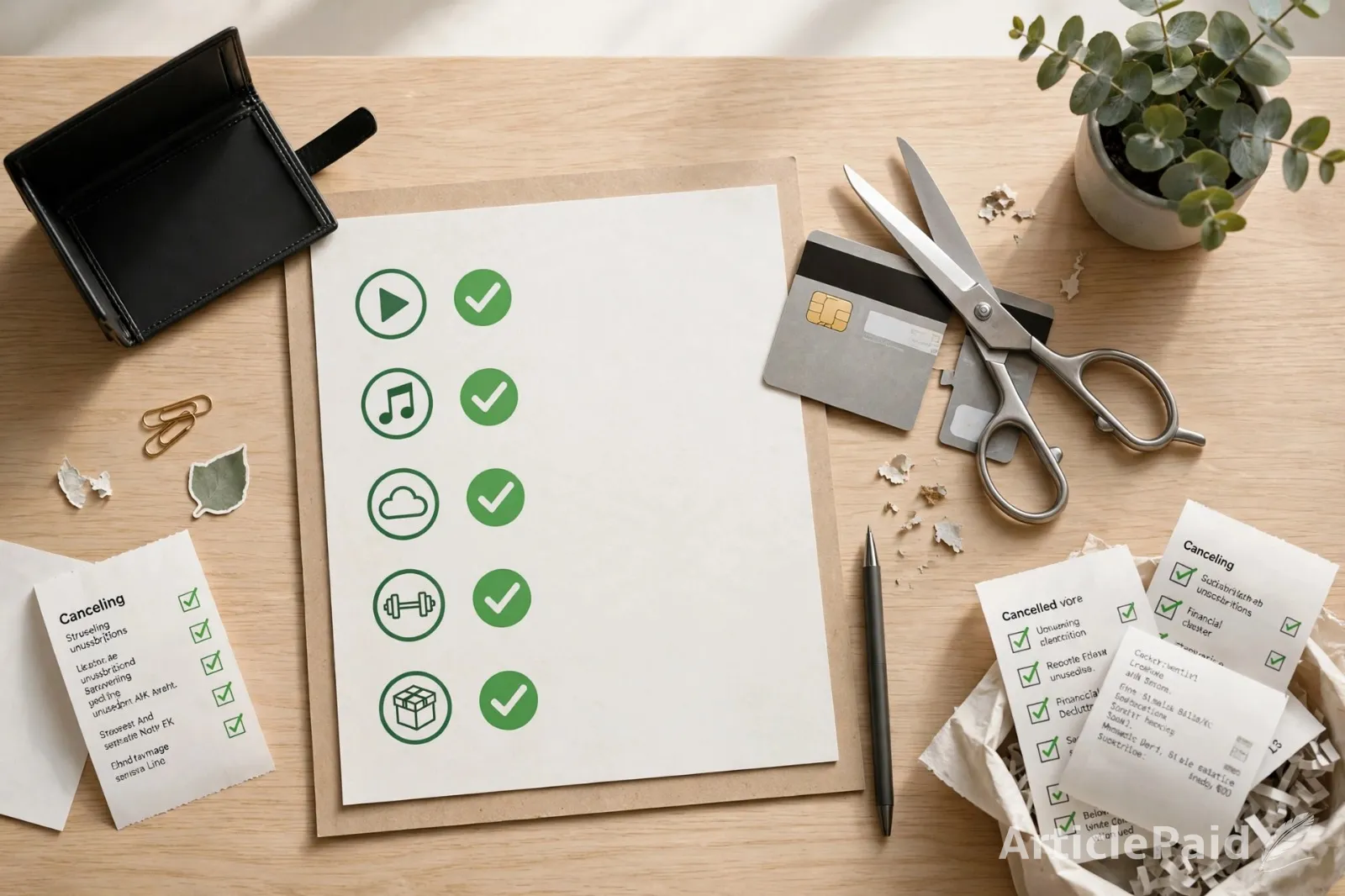
Open your bank or credit card app and look at the last two or three months. Look for charges that come back every month. Streaming, music, apps, cloud storage, fitness apps, delivery memberships, and free trials that turned into paid plans.
Write down everything you find. Then ask yourself:
- Do I use this?
- Do I like it?
- Would I notice if it disappeared tomorrow?
If the answer is no, cancel it. A good rule is: if you haven’t used it in the last 90 days, cancel it. You can always sign up again later.
Check your phone too
Some subscriptions don’t show up clearly on your bank statement, especially app subscriptions.
On iPhone, go to Settings, tap your name, then tap Subscriptions. On Android, open the Google Play Store, tap your profile icon, then go to Payments & subscriptions and tap Subscriptions.
Look through the list. You may find apps you downloaded once and forgot about.
You can also search your email for words like “subscription,” “receipt,” “trial ending,” or “payment confirmed.” That can help you find things you signed up for months ago.
Cancel without guilt
A lot of people keep subscriptions because they feel bad canceling. Maybe you think you’ll use it someday. Maybe it’s only $5 a month.
But $5 a month is $60 a year. A few of those can quietly turn into hundreds of dollars.
Canceling doesn’t mean you failed. It just means you’re choosing what’s actually worth your money right now.
If you’re not sure, pause it if you can. Or set a reminder to check again in a month.
Do a little each day
You don’t need to spend a whole weekend on this. Try 15 minutes a day.
Day one: delete recent screenshots and blurry photos.
Day two: clean your downloads folder.
Day three: organize your desktop.
Day four: check your bank statements.
Day five: cancel two subscriptions.
Small steps add up fast.
Keep it clean
Once you’ve cleaned up, set a reminder to check again every month or every few months. Delete new junk, review new subscriptions, and move important files where they belong.
Also, before you download something new, ask yourself if you really need it. Before starting a free trial, set a reminder for the day before it ends.
Your digital life doesn’t have to be perfect. It just needs to be easier to manage. A little cleanup now can save you space, stress, and money later.










Responses (0)