
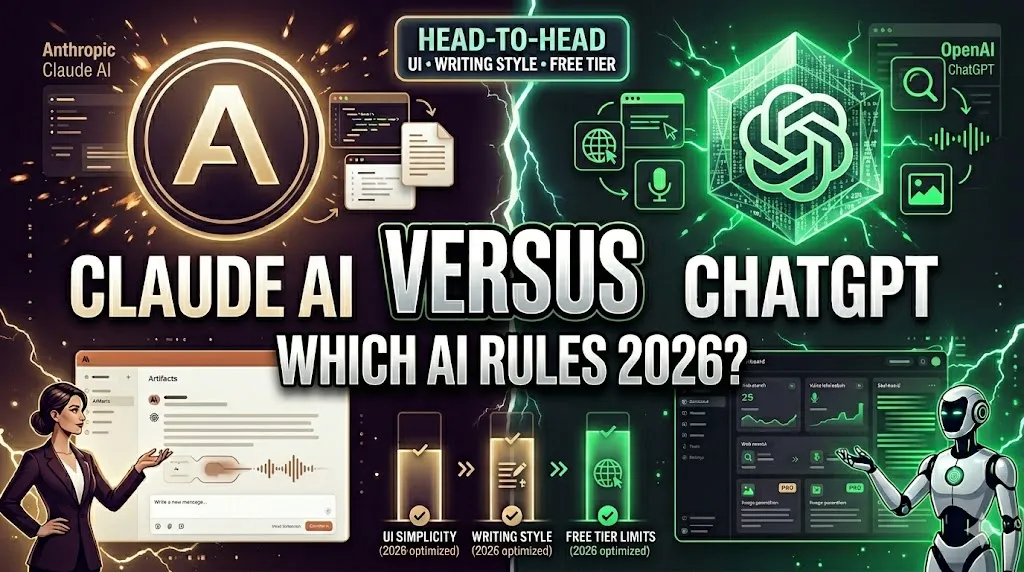
Series 1 : How to Get Started with Claude AI: A Step-by-Step Beginner’s Manual
Step 1: Seamless Onboarding and Account Architecture
To establish your workspace, navigate to the official Anthropic Claude web application. The platform provides a streamlined onboarding experience designed to get you up and running quickly.
Portal Access: Open your preferred browser and visit claude.ai. The landing page features a minimalist authentication screen.
Credential Configuration: You can create an account using an email address or link it directly to an existing Google account. For security, Anthropic requires a brief verification step.
Workspace Personalization: Upon initial entry, you will be prompted to enter your name and agree to the basic data privacy and model interaction guidelines. Once completed, you are instantly redirected to the primary dashboard window.
Step 2: Decoding the Dashboard Layout
Claude's interface is intentionally designed to minimize distractions. Let's look at the key functional areas of the main screen:
The Central Input Arena: Located right in the center of your screen, this wide box is where you type your questions or instructions. It includes a paperclip attachment icon that allows you to easily upload text documents, PDFs, code files, or data spreadsheets directly into the chat.
The Left Context History Bar: This collapsible sidebar holds a chronological list of your past interactions. You can organize, rename, or delete historical threads here, making it easy to jump back into a past conversation.
The Account Matrix: Positioned at the lower-left corner, this profile menu gives you quick access to your global settings, feature previews, billing details, and API configuration options.
Step 3: Mastering Your First Three Foundational Prompts
To get the absolute best results from Claude, it helps to move away from simple, one-word queries. Instead, try using structured prompting right from the start. Here are three highly effective, ready-to-use prompt blueprints:
Blueprint 1: The Multi-Perspective Document Synthesizer
Use this prompt when you have uploaded a complex article, corporate brief, or study guide and need a nuanced summary.
Template to Copy and Paste:
"I have uploaded a document regarding [Insert Subject]. Please provide a comprehensive analysis of the text. Format your output with an executive summary paragraph first, followed by a bulleted breakdown of the five primary arguments, and conclude with a list of any potential logical gaps or unaddressed issues within the document."
Blueprint 2: The Adaptive Prose Stylist
Use this prompt to generate written content that matches a very specific tone, avoiding that generic, robotic AI feel.
Template to Copy and Paste:
"Draft a professional marketing email announcing the launch of [Insert Product/Service Name]. The target demographic is [Insert Audience, e.g., corporate technology executives]. The tone must be confident, elegant, and highly professional. Avoid cliché marketing buzzwords. Ensure the email includes an intriguing subject line and a clear call-to-action button concept."
Blueprint 3: The Socratic Educational Code Mentor
Perfect for learning a new skill, understanding a complex concept, or parsing a block of software code.
Template to Copy and Paste:
"Explain the core structural mechanics of [Insert Topic/Concept/Code Block] as if I am an intermediate student. Do not simply provide the raw answer. Instead, break it down into logical steps, provide a clear real-world analogy, and conclude with two conceptual questions that will help test my understanding of what was just explained."






















Responses (0)
Sign in to share your thoughts.
Sign in